How To Use a Dental Lab Scanner To Scan an Implant Model With Abutment
A deep, practical guide for technicians who want fewer remakes and more “seat-once” restorations.
1. Why Implant–Abutment Scans Decide Whether a Case Succeeds
When a screw-retained crown rocks, binds, or just won’t fully seat, the problem is often not the milling machine. Very often, the story starts earlier: at the way the implant model and abutment were scanned.
Modern digital workflows from systems like Medit and Glidewell Dental repeatedly show the same thing: if the abutment, soft tissue, and occlusion are captured correctly, the CAD stage becomes a formality and not a rescue mission.
This article is written for dental technicians, lab owners, and CAD/CAM designers who work with:
-
Physical implant models with analogs
-
Stock/custom abutments (titanium, zirconia, Ti-base, etc.)
-
Desktop lab scanners of any brand
The goal is not just to tell you which buttons to click, but to share micro-level strategies (alignment, materials, scan spray, libraries) that help you move from “good scans” to predictable, textbook-level accuracy.
2. What You Are Really Scanning (Not Just “The Implant”)
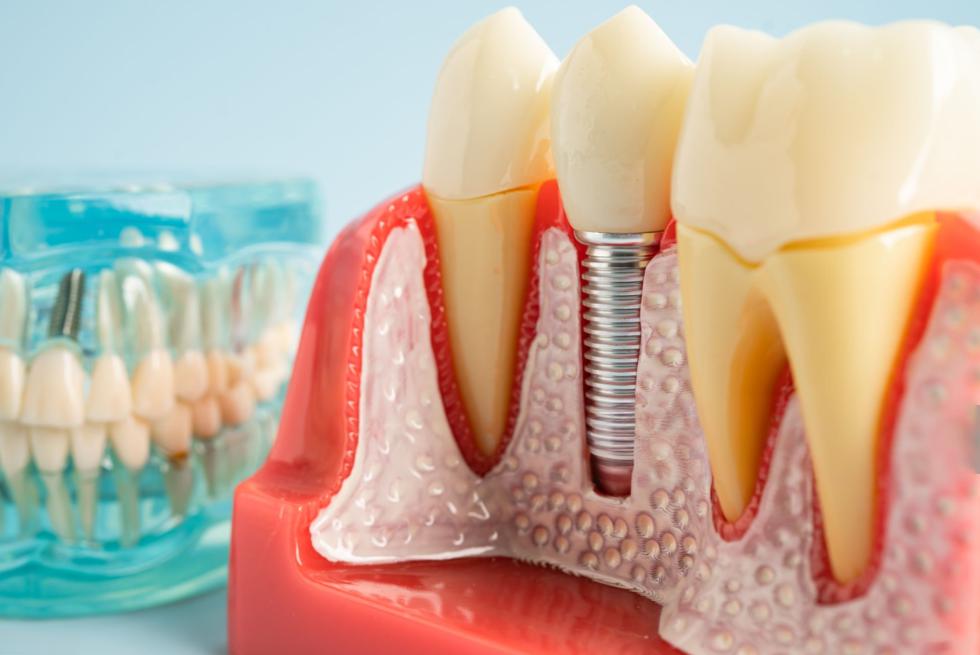
On the bench, you’re never literally scanning an “implant.” You’re scanning a chain of components that translates the implant position into digital space. If any link in that chain is off by a few microns, your prosthesis can misfit.
Typically, your setup includes:
-
A master cast (often printed or stone) with an implant analog
-
A stock or custom abutment (titanium, zirconia, or Ti-base-based)
-
A soft-tissue / gingival mask
-
Sometimes a scan body instead of direct abutment scanning
Clinicians and labs often talk about “scanning the implant,” but what you’re really scanning is either the abutment itself or a scan body whose shape the software translates into implant position.
Each of these parts has its own tolerances, surface properties, and risk of error. Understanding them helps you decide:
-
Do I scan directly on the abutment, or via a scan body?
-
Do I need multi-scan alignment (with and without gingiva), or is a simple single scan enough?
-
Where do I need extremely clean data, and where is “good enough” actually good enough?
3. Choosing the Right Workflow: Direct Abutment vs Scan Body
Different cases call for different scanning strategies. Many labs recommend tailored workflows depending on whether you have a finished abutment, whether soft tissue is deep, and whether you rely heavily on libraries.
3.1 Workflow options at a glance
Here’s a comparison you can use when defining lab SOPs:
|
Workflow Type |
What You Scan |
Ideal Use Cases |
Main Advantages |
Key Risks / Watch-outs |
|
Direct abutment, single scan |
Whole arch / quadrant with abutment and gingiva mask in place |
Simple single units, supragingival margins, posterior crowns |
Fast, minimal data management, easy training |
Tissue may hide the margin; reflective abutment surfaces; less control of emergence profile |
|
Direct abutment, multi-scan (recommended baseline) |
1️⃣ Working arch without gingiva (margin exposed) 2️⃣ Same arch with gingiva 3️⃣ Occlusion |
Esthetic zone, deep or 0.5 mm subgingival margins, multi-unit |
Excellent margin visibility and emergence profile; stable occlusion data |
Requires careful alignment of datasets; slightly longer bench time |
|
Scan body–based |
Arch with scan body fully seated + antagonist + occlusion |
Cases where CAD relies on precise implant library matching; full-arch or multi-implant cases |
Very accurate 3D implant position; robust implant library integration |
Scan body must be fully seated; wrong library choice can cause hidden misfit |
|
Hybrid: scan body + custom abutment |
Scan body first (to record implant), then custom abutment on same analog |
Esthetic, multi-unit, or when custom emergence is critical |
Combines library-accurate implant position with real, customized soft-tissue profile |
More complex; requires zero movement of analog between scans |
In practice, many labs pick one main workflow (often “direct abutment multi-scan”) and add scan body workflows for more complex or library-dependent cases.
3.2 Quick decision cues for daily use
When you’re deciding the next step at the scanner, ask yourself:
-
Choose direct abutment scanning when:
-
The margin is at or slightly below the gingival margin (≈0–0.5 mm) and clearly visible on the model.
-
It’s a single posterior unit with straightforward occlusion.
-
You already know this abutment design works reliably in your workflow.
-
Choose a scan body workflow when:
-
The margin is deep subgingival or heavily covered by tissue mask.
-
You need precise implant position for bridge / full-arch cases.
-
You rely on a validated implant library for that system in your CAD.

4. Micro-Precision Mindset: Tolerances, Scan Spray, and Error Budget
Implant prosthetics live in the micron world. A few microns at the analog–abutment interface, a few more from scan spray thickness, plus scanner noise, plus milling tolerances… they add up.
Modern lab scanners may have claimed accuracies in the range of a few microns under ideal conditions. In real cases, rough surfaces, reflections, and data stitching can increase effective error.
4.1 Scan spray: how much is “too much”?
A light scan spray can dramatically improve data on highly polished titanium or zirconia by reducing reflection. However, every coat also moves the “virtual” surface outward.
Practical, lab-friendly guidance:
-
Treat spray as a thin, controlled coating, not paint.
-
Prefer products that specify coating thickness in the single-digit microns range.
-
Avoid multiple passes; instead:
-
Shake well.
-
Spray from the recommended distance.
-
Aim for a matte but still sharp surface, not a chalky blob.
A safe way to phrase this in your internal SOP:
“Use uniform, minimal scan spray. Aim for a thin, matte coating in the single-digit micron range; follow the spray manufacturer’s specs and avoid multiple heavy layers, which can blunt margins.”
4.2 Building an “error budget” into your thinking
When scanning an implant model with abutment, mentally track these potential sources of deviation:
-
Abutment not fully seated → vertical & angular error
-
Thick scan spray → rounded margin and widened abutment
-
Scanner noise / stitching → small ripples in the emergence profile
-
Library mismatch → idealized geometry that doesn’t match physical parts
If you respect each of these and keep them individually small, your total error budget remains within a clinically safe range.
5. Pre-Scan Preparation: Model, Abutment, Gingiva, and Material Strategy
Most “bad scans” start before the scanner light ever hits the model. Pre-scan prep is the cheapest place to buy back accuracy.
Begin with a simple principle:
“Nothing in the scan will be better than what’s on the bench.”
Ensure the analog, abutment, tissue mask, and occlusal relationship are all honest and stable before you capture anything.
5.1 Model & abutment: mechanical honesty first
Before scanning, systematically check:
-
Analog & abutment seating
-
Use the appropriate lab driver to seat the abutment on the analog; do not rely on “finger-tight” torque only.
-
Under magnification, confirm no gap at the shoulder and no rocking under light pressure.
-
Margin visibility
-
Rotate the model 360° under bright light.
-
If the gingival mask overhangs or shadows the margin, relieve the mask slightly or plan a separate “no-gingiva” scan to reveal the margin fully.
-
Soft-tissue mask stability
-
Seat and unseat the mask several times and confirm it returns to the same position.
-
Be aware that some silicone materials are slightly compressible; in occlusion scans, they may distort the contact pattern if heavily loaded.
This discipline alone eliminates a large proportion of misfit-related remakes.
5.2 Material-specific scanning strategies (titanium, zirconia, PEEK…)
Different abutment materials interact with blue and visible light differently. Highly polished metals reflect; translucent ceramics transmit and scatter.
Use this table as a quick cheat sheet:
|
Abutment Material / Surface |
Optical Behavior in Lab Scanners |
Recommended Scan Strategy |
|
Sandblasted / matte titanium |
Diffuse reflection, generally scanner-friendly |
Usually no spray needed; keep scanner distance and angle consistent; focus on capturing sharp margin edges. |
|
Polished titanium / anodized gold-tone Ti |
Strong specular reflection; “hot spots” and missing patches common |
Slight scan spray to matte the surface; multiple scan angles around the abutment; avoid bright direct reflections into the lens. |
|
High-translucent zirconia abutment |
Translucent with internal scattering; can look “soft” in blue-light scanners |
Sometimes benefits from reduced scanner brightness/exposure if your software allows; maintain multiple angles to define margin; light spray only if reflections persist. |
|
Opaque zirconia / zirconia coping on Ti-base |
Lower translucency, more ceramic-like reflection |
Typically easy to scan without spray; focus on the junction between coping and Ti-base and on clean emergence profile. |
|
PEEK or other polymers |
Low reflection, slightly “soft” edges |
Usually scan well without spray; ensure model is dust-free; pay extra attention to margin definition and don’t rely on auto hole-filling near the edge. |
When in doubt, run a quick test scan on a non-critical area of the same material to see how it behaves, then adjust brightness, exposure, or spray accordingly.
6. Step-by-Step Workflow for Scanning an Implant Model With Abutment
Here’s a robust, brand-agnostic workflow you can adapt for most lab scanners. It assumes a direct abutment, multi-scan strategy, but you can easily swap in a scan body for the abutment if that’s your protocol.
6.1 Overview: scan sequence
Start by setting up the case in your scanner software:
-
Create a new order with the correct tooth number, implant system, and restoration type.
-
If your CAD flow is library-driven, select the correct implant platform right from the beginning.
Then follow this sequence:
-
Scan the antagonist (opposing arch)
-
Scan the working arch without gingiva (abutment fully exposed)
-
Scan the gingival mask in place
-
Scan the occlusion / articulation
This order helps you keep the most critical data (abutment + margin) clean, and then layer on tissue and occlusion.
6.2 Detailed steps with practical tips
-
Antagonist scan
-
Capture the full arch or at least the teeth that will come into occlusal contact.
-
Rotate the model to ensure no “bites” missing from cusp tips and fossae.
-
Working arch – abutment and model without gingiva
-
Remove the soft-tissue mask to fully expose the margin.
-
Start from the abutment region and then expand outward.
-
Tilt and rotate the model so the scanner can “see” undercuts and subgingival areas where the margin lies.
-
Avoid relying on automatic “hole filling” around the margin – if you see voids, rescan from a better angle instead.
-
Gingival mask scan
-
Reseat the gingival mask completely; check for rocking or gaps.
-
Scan either the full arch again or a localized region around the implant, depending on your software.
-
Make sure the software has enough overlapping hard-tissue anatomy (cusps, ridges) to align this scan with the “no-gingiva” dataset.
-
Occlusion scan
-
Mount the working and antagonist models in occlusion as you would for conventional articulation.
-
Scan the intercuspation area; this doesn’t have to cover the entire arch, but must include enough landmark teeth to lock in the bite.

7. Alignment: Keeping All Scans in the Same Coordinate System
Alignment is where many otherwise good scans fall apart. The biggest risk when scanning abutment + gingiva + occlusion in separate passes is that the software stitches them together with slight drift, which shows up later as contact or seating issues.
Think of alignment in three layers:
-
Geometry quality – sharp, distinctive features are easier to match than flat or soft areas.
-
Landmark selection – where the software (or you) decide to match datasets.
-
Validation – you checking whether the result makes anatomical sense.
7.1 Practical alignment strategies that actually work
When performing or reviewing alignments:
-
Favor hard-tissue landmarks
-
Use cusps, marginal ridges, fossae, and unique tooth shapes, not soft tissue, as primary matching areas.
-
Avoid using only the smooth gingival mask surface; it’s too “featureless” and prone to mismatch.
-
Use wide, distributed areas for matching
-
Instead of aligning based on one tooth, pick a segment of 3–5 teeth around the implant site.
-
Spread landmarks across buccal and lingual surfaces to reduce rotational drift.
-
Align in stages, not all at once
-
First align the no-gingiva working scan with the gingiva-in-place scan using hard teeth as anchors.
-
Then align the articulated occlusion scan, again based on clear opposing cusp-to-fossa relationships.
-
Always validate in 3D
-
After each alignment, orbit and inspect:
-
Does the gingival mask sit flush around the abutment without floating or intersecting?
-
Does the occlusion in the software match the physical bite?
If your software offers both automatic and manual / guided alignment, consider using automatic as a first pass, then refining manually using chosen landmarks around the implant site.
8. Scan Bodies and Libraries: Avoiding Invisible Mis-Matches
If your workflow involves scan bodies, or you rely heavily on implant libraries, you’re trusting that the virtual parts match the physical parts perfectly. In practice, mismatches between analog manufacturers, scan bodies, and CAD libraries are a common hidden error source.
8.1 Golden rules for safe use of libraries
When you place a scan body or map an abutment to a library:
-
Match manufacturers end-to-end
-
Ideally, Analog brand = Implant system = Library brand / line.
-
Avoid mixing original implants with unverified third-party libraries unless you are sure they are dimensionally compatible.
-
Verify the scan body code
-
Many systems have near-identical components with different platforms (e.g. 3.0 vs 3.5 mm).
-
Double-check the scan body reference engraved on the piece against your software’s library item.
-
After library alignment, visually inspect
-
Rotate the scene and confirm the virtual scan body or abutment geometry sits perfectly inside your scan data with no offsets or rotations.
-
Pay special attention to the platform area and screw channel.
A simple lab rule you can adopt:
“Never approve a case where the virtual library component doesn’t visually ‘snap’ into the raw scan like a glove.”
9. Troubleshooting: If Something Looks Wrong, Check These First
Even with a solid protocol, some cases will “feel wrong” at the CAD stage. Instead of starting over, use a quick diagnostic checklist.
Common symptoms and what to look for:
-
Crown won’t seat or seats with strong tension
-
Re-check: abutment seating on the analog; any gap between analog and model base; possible library mismatch.
-
Contacts excessively tight or open compared to typical cases
-
Re-check: alignment between working scan and occlusion; whether soft tissue compression distorted the bite; presence of auto-filled holes near contact areas.
-
Gingiva appears to float or intersect the abutment in CAD
-
Re-check: alignment between “no-gingiva” and “with-gingiva” scans; ensure you used tooth-based landmarks, not soft tissue, for matching.
-
Margins look fuzzy or “guessed”
-
Re-check: scan spray thickness; reflectivity of the abutment; whether you captured enough angles around the cervical region; reliance on auto hole-filling right at the margin.
Addressing the real cause at scan level is far more efficient than constantly tweaking designs or milling test crowns.
10. Printable Checklist: Implant–Abutment Scan SOP
You can turn this section into a one-page SOP and tape it next to your scanner.
Before scanning
-
✔ Abutment seated with lab driver, no visible gap, no rocking
-
✔ Margin visible 360° with gingiva removed
-
✔ Gingival mask seats repeatedly in the same position
-
✔ Correct implant system, platform, and library selected
-
✔ Abutment material & surface evaluated (Ti / zirconia / PEEK) and scan strategy decided
-
✔ Spray (if used) applied lightly and uniformly
During scanning
-
✔ Antagonist scanned with clear cusp and fossa detail
-
✔ Working arch scanned without gingiva, margin fully captured from multiple angles
-
✔ Gingiva-in-place scan captured with enough overlapping teeth for alignment
-
✔ Occlusion scan recorded on mounted models with stable bite
Alignment & verification
-
✔ Align scans using hard-tissue landmarks, not soft tissue alone
-
✔ Check gingival mask fit around the abutment in 3D view
-
✔ Confirm occlusion in software matches physical articulation
-
✔ If using a scan body, verify manufacturer match and confirm the library component overlays cleanly on the scan
Before export to CAD
-
✔ No auto-filled holes at or below the margin
-
✔ Emergence profile is continuous, no floating tissue or gaps
-
✔ All required anatomy (one tooth anterior & posterior minimum) is present
With this upgraded workflow, you’re no longer just “running the scanner” — you’re controlling every micron that matters in the implant–abutment chain. That’s what transforms digital impressions from a source of remakes into a reliable engine for first-try, seat-once restorations.